A3113 MacBook Air M3 Black Screen Repair – Screen Tested Good, Logic Board Fault Found
Repair Overview
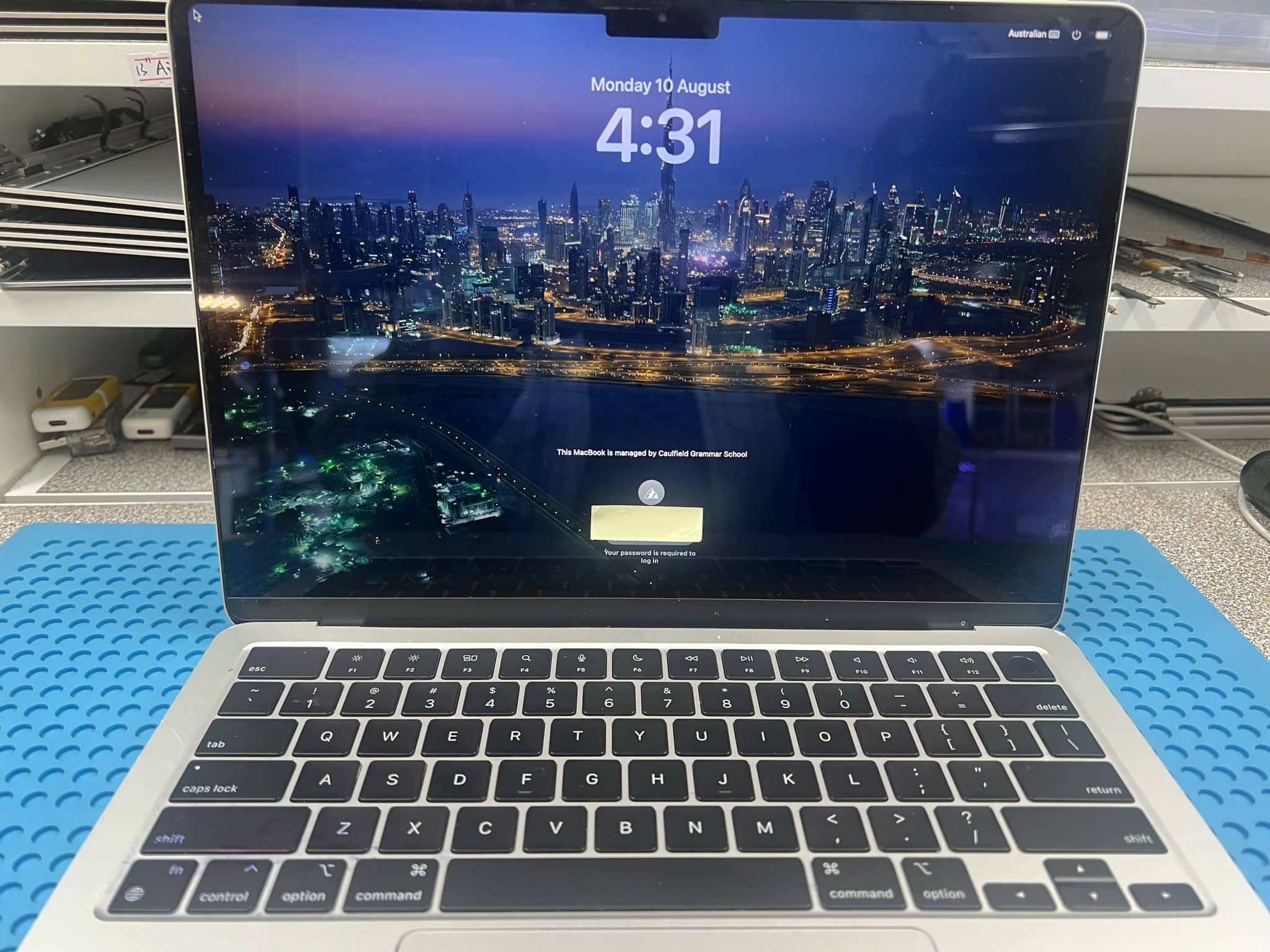
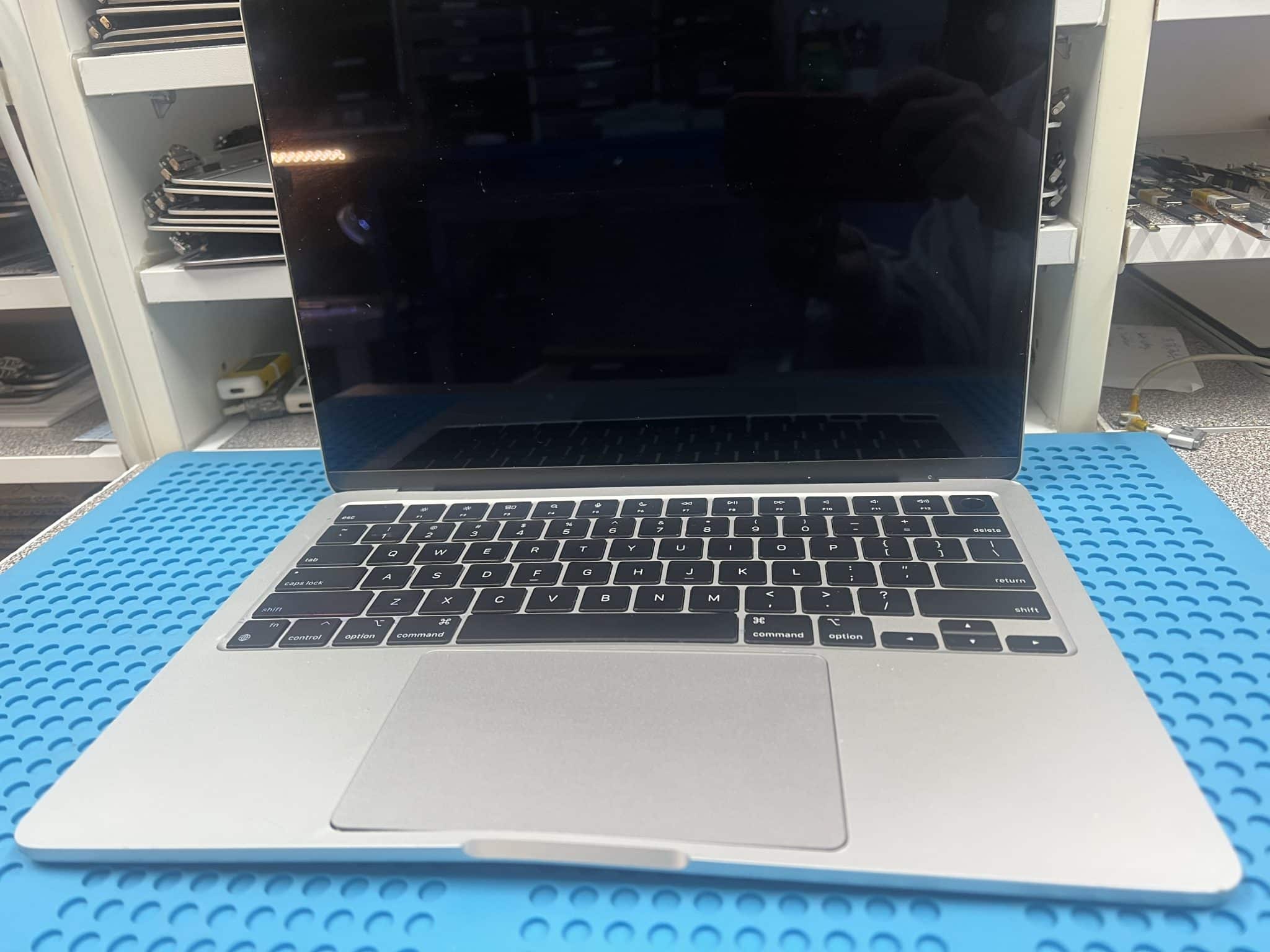
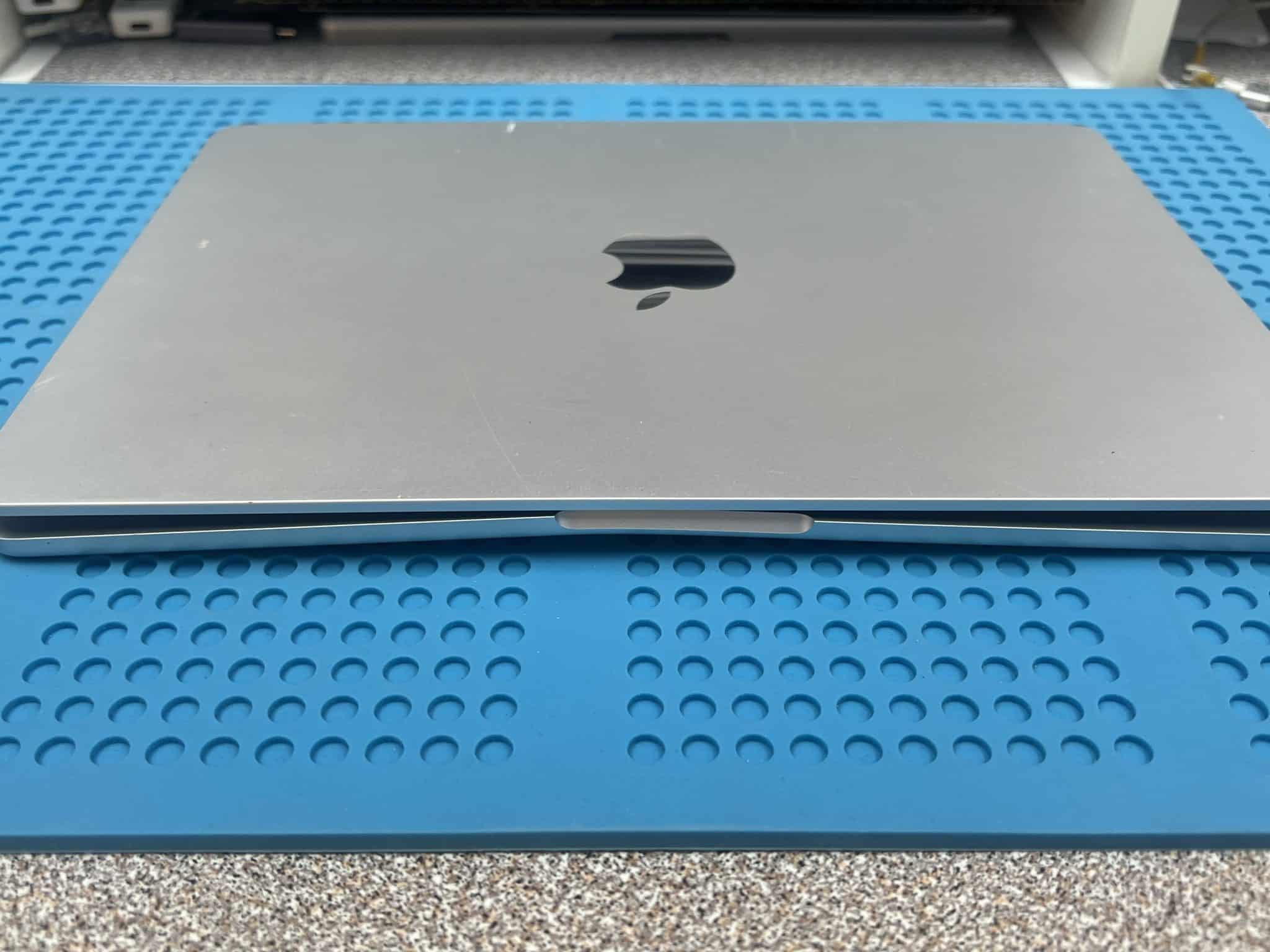
This 13-inch MacBook Air M3 2024, model A3113, logic board 820-03285, came from the Elwood / Brighton Road VIC 3184 area with physical damage and a black screen.
At first, it looked like a normal MacBook screen replacement job because the MacBook still made the startup chime and the Caps Lock key responded. The USB-C current pattern also looked like a normal boot:
20V / 0.13A → 0.46A → 0.21AThe customer needed the MacBook back quickly, so our customer service team quoted it as a likely screen replacement before it reached the repair bench.
But when we connected the screen to a test machine, the screen worked normally. That changed the diagnosis immediately: this was not a faulty LCD assembly. It was a logic board display/backlight fault.
The repair was completed by replacing the damaged JP600 display connector, then repairing the backlight circuit by replacing RP844 and UP800.
Final result:
MacBook fully functional againCase Summary
| Item | Details |
|---|---|
| Device | 13-inch MacBook Air M3 2024 |
| Model | A3113 |
| Logic board | 820-03285 |
| Customer area | Elwood / Brighton Road VIC 3184 |
| Customer fault | Physical damage, chime, Caps Lock responds, black screen |
| Initial USB-C reading | 20V / 0.13A → 0.46A → 0.21A |
| First assumption | Possible screen replacement |
| Screen test result | Screen works on test machine |
| Real fault area | Logic board display / backlight circuit |
| LCD panel rails | Present and normal |
| Backlight output | PPVOUT_LCDBKLT missing / too low |
| Physical fault | JP600 pin 57 broken and shorted from impact |
| Second fault | RP844 burned / UP800 backlight controller issue |
| Repair | JP600, RP844 and UP800 replaced |
| Final result | MacBook working normally |

Infographic

Why This Was Not a Simple Screen Replacement
The MacBook had:
Startup chime
Caps Lock response
Normal-looking USB-C boot current
Black screen
Those symptoms often point to a broken screen, especially when there is physical damage.
But we do not rely on symptoms alone. We tested the customer’s display assembly on a known-good test machine. The screen worked, so replacing the screen would not have fixed the MacBook.
This is why screen repair diagnosis must include logic-board testing, especially on newer Apple silicon MacBook Air models.
Torch Test Result
We used a torch to check for a dim image on the display.
Result:
No dim imageOn older Intel-based MacBooks, a backlight failure often still allows the Mac to boot normally and show a very dim image.
But this case is a good reminder that M2–M5 MacBook Air backlight faults can behave differently. A MacBook Air can keep booting with no visible dim logo and no dim desktop image.
So on these newer Air models, the absence of a dim image does not automatically rule out a backlight or LED power fault.
LCD Panel Power Rail Checks
The first logical step was to confirm whether the LCD panel power rails were present.
| Rail | Measurement | Result |
|---|---|---|
| PP3V3_SW_LCD | 3.3V | OK |
| PP1V8_DISP | 1.8V | OK |
| PP1V8_S2 | 1.8V | OK |
| PP5V_SW_MINNIE | 5V | OK |
| PP1V25_SW_MINNIE | 1.25V | OK |
| PPVOUT_LCDBKLT | 0V | Not OK |
The LCD panel rails were present, so the panel power side was not the main problem. The missing rail was:
PPVOUT_LCDBKLT = 0VThat pointed the diagnosis toward the backlight boost output and connector area.
First Fault Found – JP600 Pin 57 Damage
Under the microscope, we found impact damage at JP600.
The key fault:
JP600 pin 57 broken and shorted due to physical impactThis explained why the backlight circuit could not operate normally. If a connector pin is physically damaged and shorted, replacing chips first would be a bad repair sequence. The short or damaged connection must be cleared first.
We replaced JP600 and confirmed the short was gone.
After replacing JP600, the Mac powered on, but the screen was still black.
The new reading was:
PPVOUT_LCDBKLT = 0.93VThat was still not correct. The backlight output was no longer fully shorted, but the boost circuit still could not generate normal backlight voltage.
Second Fault Found – RP844 and UP800
We then checked the UP800 backlight-controller supply and related rails in diode mode.
| Test point | Diode-mode reading | Result |
|---|---|---|
| UP800 VDDA | 0.456 | OK |
| UP800 VDDD | 0.092 | Very low / not OK |
| RP844 | 10Ω, burn mark | Not OK |
The low VDDD diode reading and burn mark on RP844 showed the backlight-controller area had also been damaged.
We replaced:
RP844
UP800
After that, the MacBook worked normally.
Diagnosis Logic
The repair logic was:
Physical impact + black screen
↓
Chime present and Caps Lock responds
↓
USB-C current pattern looks like normal boot
↓
Screen tested on another machine
↓
Screen works, so fault is not the LCD assembly
↓
Torch test: no dim image
↓
Check LCD panel power rails
↓
PP3V3_SW_LCD, PP1V8_DISP, PP1V8_S2, PP5V_SW_MINNIE, PP1V25_SW_MINNIE all OK
↓
PPVOUT_LCDBKLT = 0V
↓
Inspect display connector under microscope
↓
JP600 pin 57 broken and shorted from impact
↓
Replace JP600
↓
Short gone, but PPVOUT_LCDBKLT only 0.93V
↓
Check UP800 supplies and diode-mode readings
↓
VDDA OK, VDDD very low
↓
RP844 burn mark found
↓
Replace RP844 and UP800
↓
Backlight restored
↓
MacBook fully functional
Key Technical Lesson
This case is important because the symptom can mislead technicians.
Intel MacBook behaviour
On many Intel MacBooks, if the backlight circuit fails, the Mac usually still boots to macOS and a very dim image can often be seen with a torch.
14-inch / 16-inch M1–M4 MacBook Pro behaviour
On many 14-inch and 16-inch Apple silicon MacBook Pro models, a backlight fault may show a dim Apple logo for a few seconds, then the machine may shut down or stop the display sequence.
M2–M5 MacBook Air behaviour
On newer MacBook Air models, including M2, M3 and later Air boards, a backlight fault may continue booting but show no dim Apple logo and no visible dim image at all.
That means:
No dim image does not rule out a backlight fault on newer MacBook Air models.On these Air models, check the display power rails and backlight circuit before blaming the LCD panel.
Final Fix
The final repair included:
Screen tested on known-good machine
JP600 inspected under microscope
JP600 pin 57 damage confirmed
JP600 replaced
PPVOUT_LCDBKLT short cleared
UP800 VDDA / VDDD checked in diode mode
RP844 burn mark found
RP844 replaced
UP800 replaced
Backlight restored
MacBook fully functional
Final result:
13-inch MacBook Air M3 A3113 fully functional againIf you are interested in the deeper diagnostic side of Mac repair, we have more real logic board fault cases documented here:
Mac Logic Board Repair Case Studies
Need Board-Level Mac Repair?
We specialise in MacBook water damage repair, logic board repair, dead logic board data recovery , and component-level diagnostics.